














Using OpenClaw — User Guide
This guide shows you how to get the most out of OpenClaw. From daily use to advanced configuration.
The Control UI
OpenClaw has a web-based dashboard for managing your assistant:
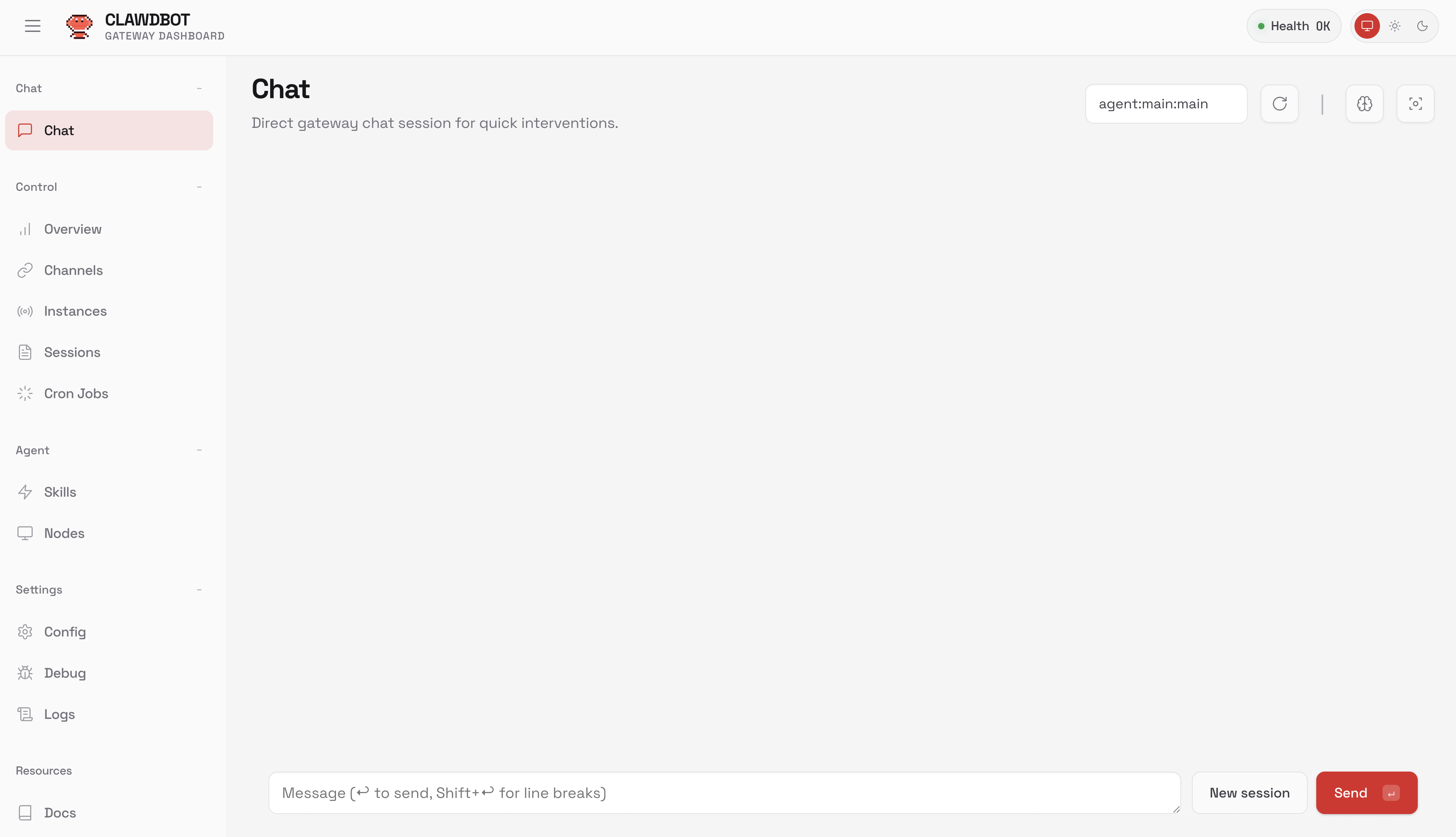 OpenClaw Control UI — web-based management dashboard
Accessing the Control UI
The Control UI is available at:
https://your-openclaw-domain.com
— or —
http://your-server-ip:3000
Dashboard Overview
The dashboard shows:
| Section | Description |
|---|---|
| Status | Online/offline status of all services |
| Conversations | Overview of recent conversations per platform |
| Skills | Active capabilities and their status |
| System | CPU, memory, and storage usage |
| Logs | Recent activity and error messages |
Connecting Messaging Platforms
OpenClaw supports multiple messaging platforms simultaneously.
Telegram
Telegram is the easiest to configure and is recommended for beginners.
Step 1: Create a bot
- Open Telegram and search for @BotFather
- Send the command
/newbot - Choose a name for your bot (e.g., "My AI Assistant")
- Choose a username (must end with
bot, e.g., "my_ai_bot") - You'll receive a bot token — keep it safe!
Step 2: Configure the token
openclaw config set telegram.token "your-bot-token"
openclaw restart
Step 3: Test
- Find your bot in Telegram
- Send
/start - Start chatting!
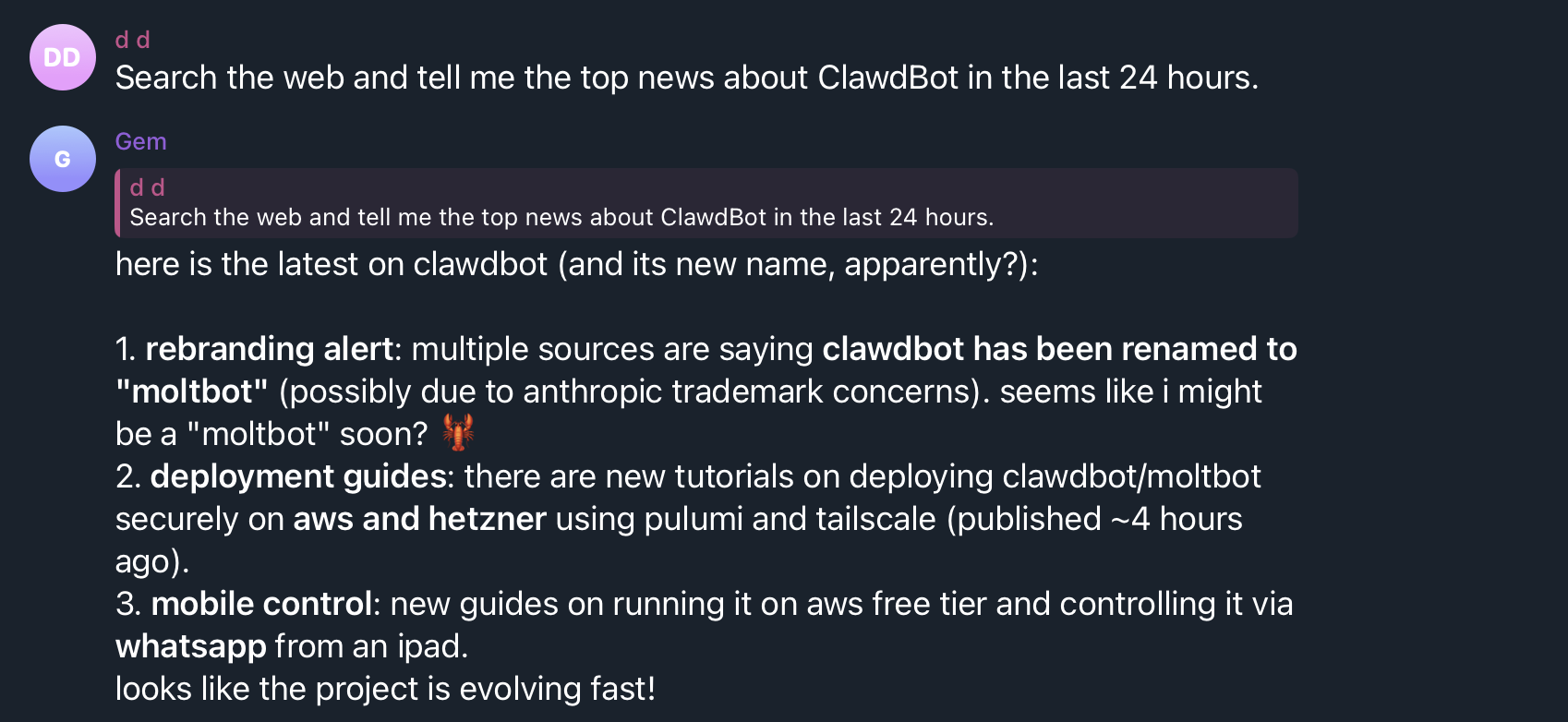 OpenClaw Telegram chat — conversation with your AI assistant
Useful Telegram commands:
| Command | Description |
|---|---|
/start | Start a new conversation |
/clear | Clear conversation history |
/model | Switch AI model |
/skills | View active capabilities |
/help | Show all commands |
For WhatsApp, you need a WhatsApp Business API account:
- Go to business.facebook.com
- Create a Meta Business account (or log in)
- Navigate to WhatsApp → Getting Started
- Create a WhatsApp Business app
- Note your Phone Number ID and Permanent Access Token
openclaw config set whatsapp.phone_id "your-phone-number-id"
openclaw config set whatsapp.token "your-access-token"
openclaw restart
Discord
- Go to discord.com/developers
- Click "New Application"
- Go to Bot → "Add Bot"
- Copy the bot token
- Go to OAuth2 → URL Generator
- Select scopes:
bot,applications.commands - Select permissions:
Send Messages,Read Message History
openclaw config set discord.token "your-bot-token"
openclaw restart
Slack
- Go to api.slack.com/apps
- Click "Create New App" → "From scratch"
- Go to OAuth & Permissions → add scopes:
chat:write,im:history,im:read,im:write
- Install the app in your workspace
- Copy the Bot User OAuth Token
openclaw config set slack.token "xoxb-your-token"
openclaw restart
Configuring Skills
Skills are modular capabilities that give your assistant extra powers.
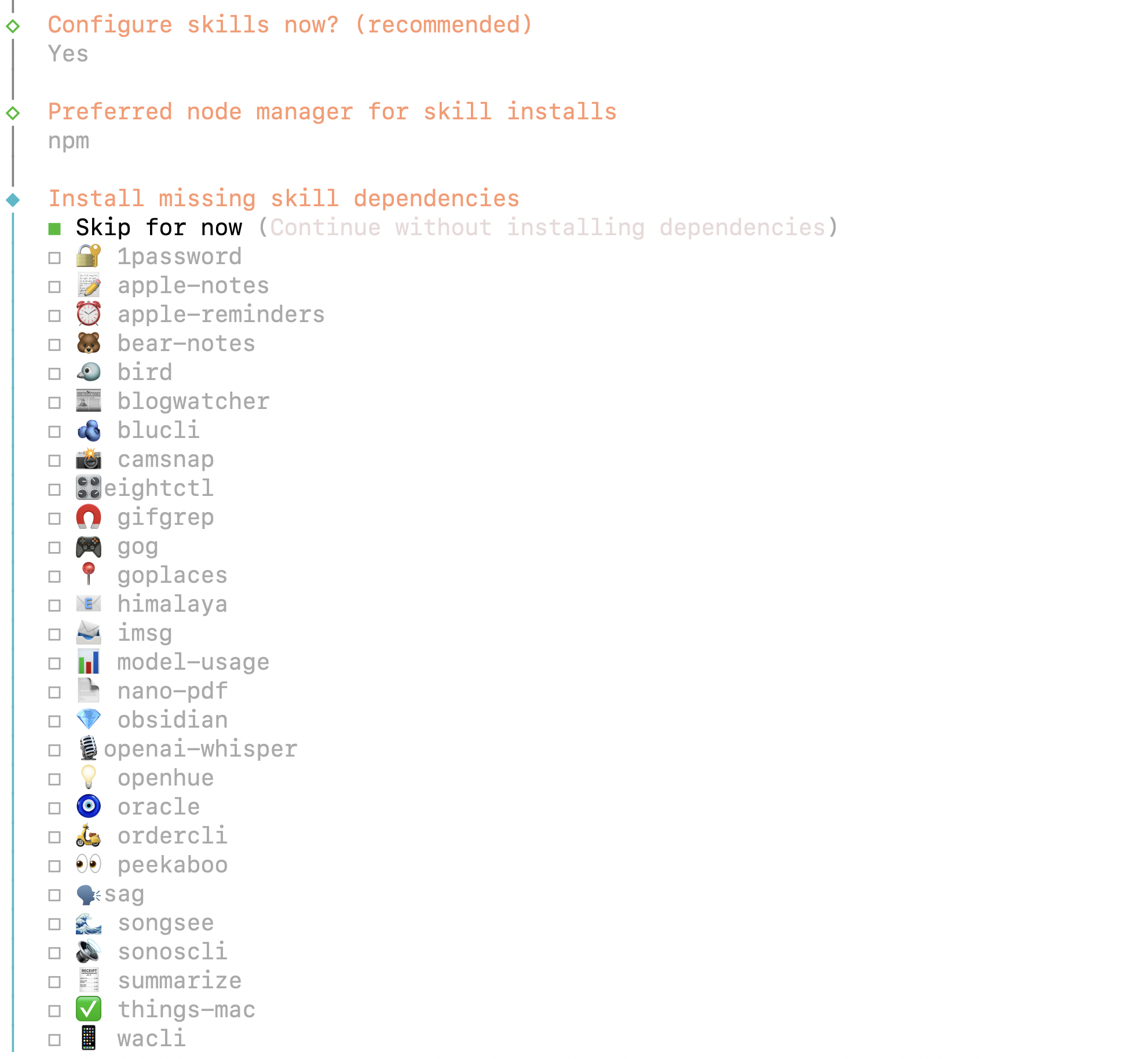 OpenClaw skills configuration — managing modular capabilities
Available Skills
| Skill | Description | RAM Required |
|---|---|---|
| Web Browsing | Visit websites, retrieve information | +1 GB |
| File Management | Read, write, analyze files | Minimal |
| Command Execution | Execute shell commands | Minimal |
| Image Generation | Generate images (DALL-E) | Minimal |
| Code Execution | Run Python/JS in sandbox | +512 MB |
| Calendar | Google/Outlook calendar integration | Minimal |
| Read and send emails | Minimal | |
| RAG (Retrieval) | Search your own documents | +512 MB |
Managing Skills via CLI
# List all available skills
openclaw skills list

# Enable a skill
openclaw skills enable web-browsing

# Disable a skill
openclaw skills disable image-generation
Skills Configuration File
# /opt/openclaw/config/skills.yml
skills:
  web-browsing:
    enabled: true
    settings:
      max_pages: 10
      timeout: 30
      block_domains:
        - facebook.com

  file-management:
    enabled: true
    settings:
      allowed_directories:
        - /opt/openclaw/data/files
      max_file_size: 10MB

  command-execution:
    enabled: true
    settings:
      allowed_commands:
        - ls
        - cat
        - grep
      blocked_commands:
        - rm
        - sudo
Web Browsing
The web browsing skill enables your assistant to visit websites and retrieve information.
How It Works
- Ask your assistant to fetch information from a website
- OpenClaw opens a headless Chrome browser
- The page is loaded and text is extracted
- The assistant analyzes the content and gives you an answer
Example Conversations
You: What are the latest n8n release notes?
Bot: Let me look up the n8n release notes...
     [Visits docs.n8n.io/release-notes]
     The latest version is n8n 1.72.0, released on ...

You: Summarize this article: https://example.com/article
Bot: Let me read the article...
     Summary: ...
RAG: Searching Your Documents
With the RAG skill, your assistant can search through your own documents.
Uploading Documents
openclaw docs add /path/to/document.pdf
openclaw docs reindex
Supported Formats
PDF, Word (.docx), Text (.txt, .md), HTML, CSV, JSON
Advanced Configuration
Custom System Prompt
# /opt/openclaw/config/config.yml
assistant:
  name: "My AI Assistant"
  language: "en"
  system_prompt: |
    You are a friendly AI assistant.
    Your specialization is technical support.
    Be concise but thorough.
Multiple AI Models
models:
  default: "gpt-4o"
  available:
    - name: "gpt-4o"
      provider: "openai"
    - name: "claude-sonnet-4-5-20250929"
      provider: "anthropic"
    - name: "llama3.1:70b"
      provider: "ollama"
Switch via chat:
/model gpt-4o
/model claude-sonnet-4-5
/model llama3.1
Troubleshooting
Common Issues
Bot not responding:
systemctl status openclaw
journalctl -u openclaw -f --since="5 minutes ago"
systemctl restart openclaw
Web browsing not working:
which chromium-browser
free -h
openclaw test web-browsing
Privacy & Security
Data Location
All data is stored in /opt/openclaw/data/:
- Conversations are stored locally
- Files are processed locally
- No telemetry — no usage data is collected
What Is Sent Externally?
Only messages to the AI provider (OpenAI/Anthropic) for generating responses. Use a local model via Ollama for complete privacy.
Security Tips
- Keep software updated — Run
openclaw updateregularly - Limit skills — Only enable skills you need
- Firewall — Keep UFW active
- SSH keys — Use SSH keys instead of passwords
- API keys — Rotate your API keys regularly
More Information
- OpenClaw Documentation: open-claw.org/docs
- GitHub Repository: github.com/openclaw/openclaw
- Community Discord: discord.gg/openclaw
Need help? Contact our support team via the chat window at the bottom right or send an email to support@maenda.media.