














Building n8n Workflows — User Guide
This guide walks you through using n8n to build powerful automation workflows step by step. From simple tasks to complex AI-driven processes.
The n8n Interface
After logging into your n8n installation, you'll see the dashboard with an overview of all your workflows.
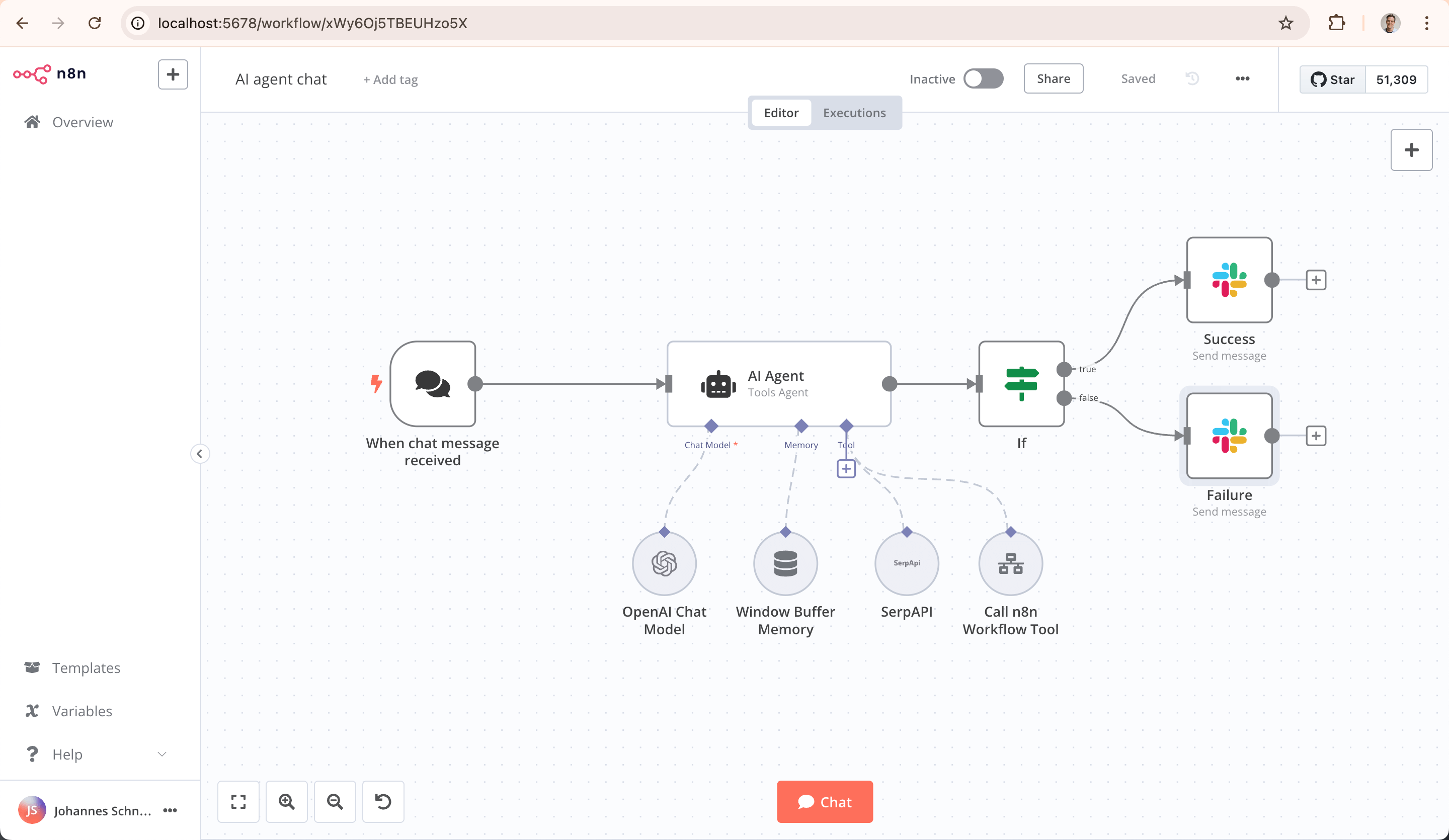 n8n workflow editor — visual drag-and-drop interface
The interface consists of:
| Component | Description |
|---|---|
| Canvas | The central workspace where you place and connect nodes |
| Node Panel | Left panel with all available nodes and integrations |
| Toolbar | Top bar with options to test, activate, and save |
| Execution Log | Bottom right for viewing previous executions |
| Settings | Workflow settings like name, tags, and error handling |
Your First Workflow
Let's build a simple workflow that sends a weather report email every morning.
Step 1: Create a new workflow
- Click "+ New Workflow" in the top right
- Name your workflow, e.g., "Daily Weather Report"
- You start on an empty canvas with a trigger node
Step 2: Set up the trigger
The trigger determines when your workflow starts:
- Schedule Trigger — At fixed times (e.g., every day at 07:00)
- Webhook — When a URL is called
- Event-based — On an app event (e.g., new email)
For our weather report, we choose Schedule Trigger:
Trigger: Schedule
Rule: Every day at 07:00
Timezone: Europe/Amsterdam
Step 3: Add nodes
- Click the + icon to the right of the trigger
- Search for "HTTP Request" in the node panel
- Configure the node:
Method: GET
URL: https://api.openweathermap.org/data/2.5/weather
Query Parameters:
  q: Amsterdam
  appid: your-api-key
  units: metric
  lang: en
- Add a "Send Email" node after the HTTP Request
- Connect the HTTP Request output to the Email node
Step 4: Test and activate
- Click "Test Workflow" to run the workflow manually
- Check the output of each node in the execution log
- When everything works, click the "Active" toggle to enable the workflow
Commonly Used Nodes
Here are the nodes you'll use most frequently:
Triggers
| Node | Usage |
|---|---|
| Schedule Trigger | Run workflows at fixed times |
| Webhook | Start workflows via HTTP request |
| Email Trigger (IMAP) | React to incoming emails |
| Cron | Advanced schedules with cron expressions |
Data & Logic
| Node | Usage |
|---|---|
| IF | Conditional logic (if/then) |
| Switch | Multiple paths based on value |
| Merge | Combine data from multiple sources |
| Set | Add or modify fields |
| Code | Custom JavaScript or Python code |
| Split In Batches | Process large datasets in parts |
Communication
| Node | Usage |
|---|---|
| Send Email | Send emails via SMTP |
| Slack | Messages to Slack channels |
| Telegram | Messages via Telegram bot |
| Discord | Messages to Discord servers |
Data Storage
| Node | Usage |
|---|---|
| Google Sheets | Read/write to spreadsheets |
| Airtable | Database-like storage |
| PostgreSQL | Execute SQL queries directly |
| MySQL | MySQL database operations |
AI Workflows with LangChain
n8n has built-in AI capabilities via LangChain integration. Build AI agents that autonomously execute tasks.
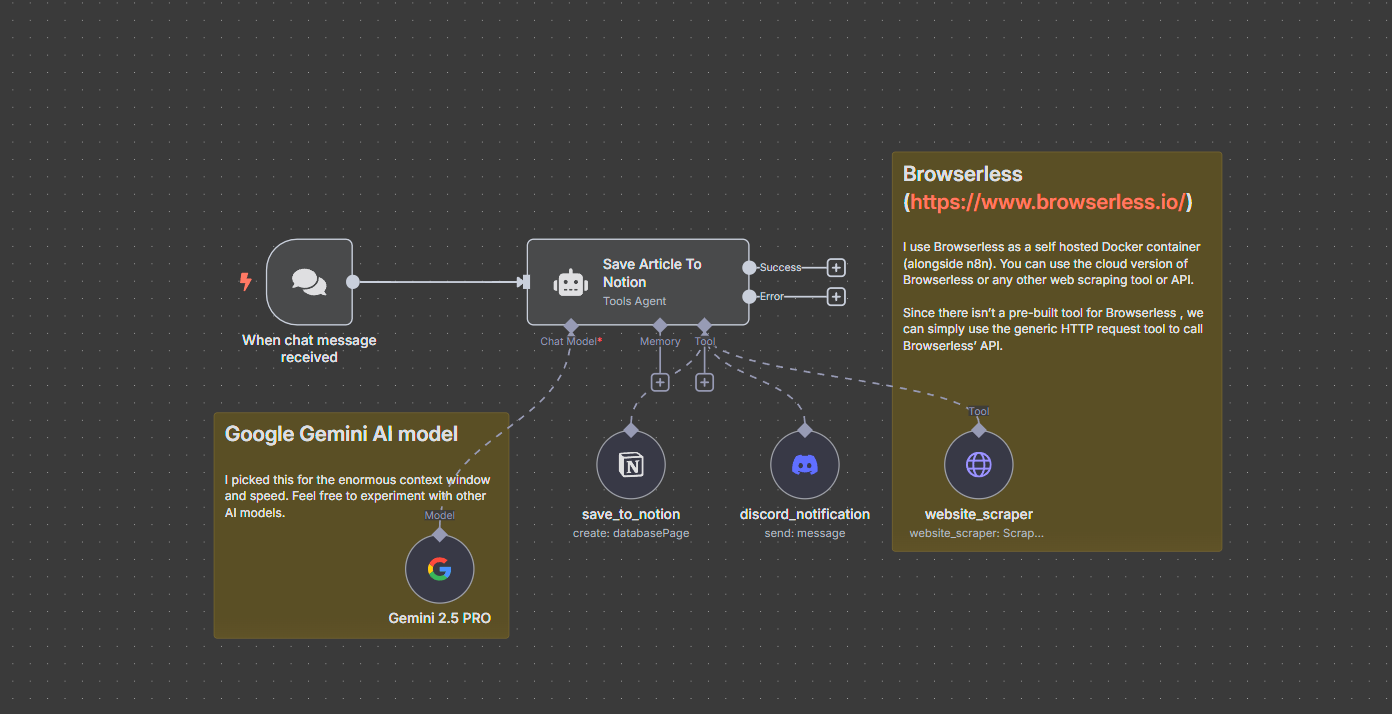 AI Agent workflow in n8n with LangChain nodes
AI Nodes Overview
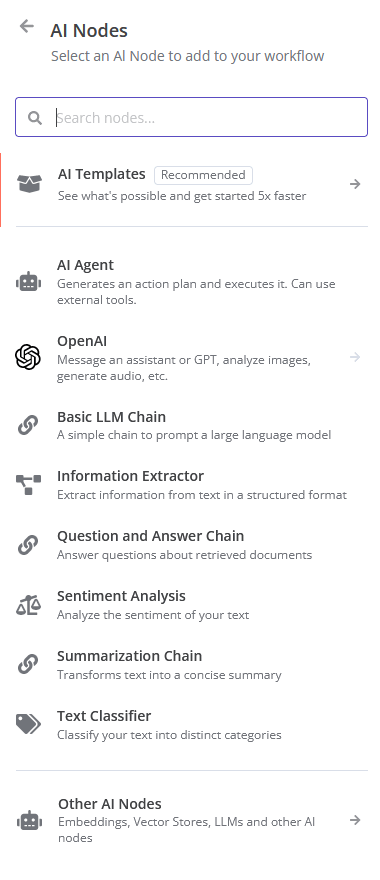 Available AI nodes in the n8n panel
The key AI nodes:
| Node | Function |
|---|---|
| AI Agent | Autonomous agent that can use tools |
| Basic LLM Chain | Simple prompt → response chain |
| Conversational Agent | Agent with conversation memory |
| OpenAI Chat Model | GPT-4, GPT-3.5 models |
| Anthropic Chat Model | Claude models |
| Vector Store | Storage for embeddings (RAG) |
| Text Splitter | Split documents for embeddings |
Example: AI Customer Service Agent
Here we build an AI agent that answers customer questions based on your knowledge base:
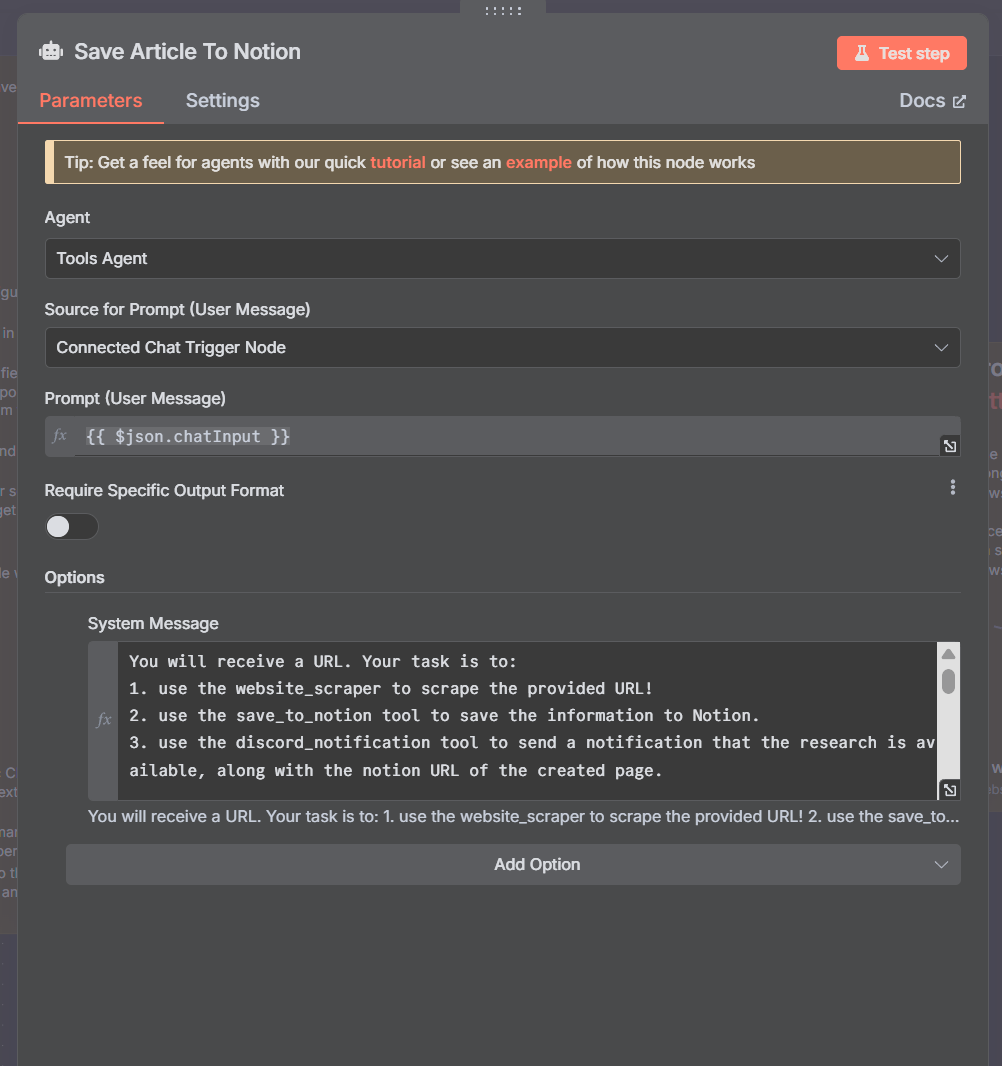 AI Agent configuration with tools and memory
Workflow setup:
- Webhook Trigger — Receives customer questions via API
- AI Agent — Processes the question with:
- Chat Model: OpenAI GPT-4 or Anthropic Claude
- Memory: Window Buffer Memory (remembers last 10 messages)
- Tools:
- Vector Store Tool — Searches your knowledge base
- HTTP Request Tool — Fetches live product info
- Calculator — For price calculations
- Respond to Webhook — Returns the answer
System Prompt:
"You are a customer service representative for [company].
Answer questions based on the knowledge base.
Be friendly and professional.
If you don't know the answer, refer to support@company.com."
Multi-Agent Workflows
For more complex scenarios, combine multiple AI agents:
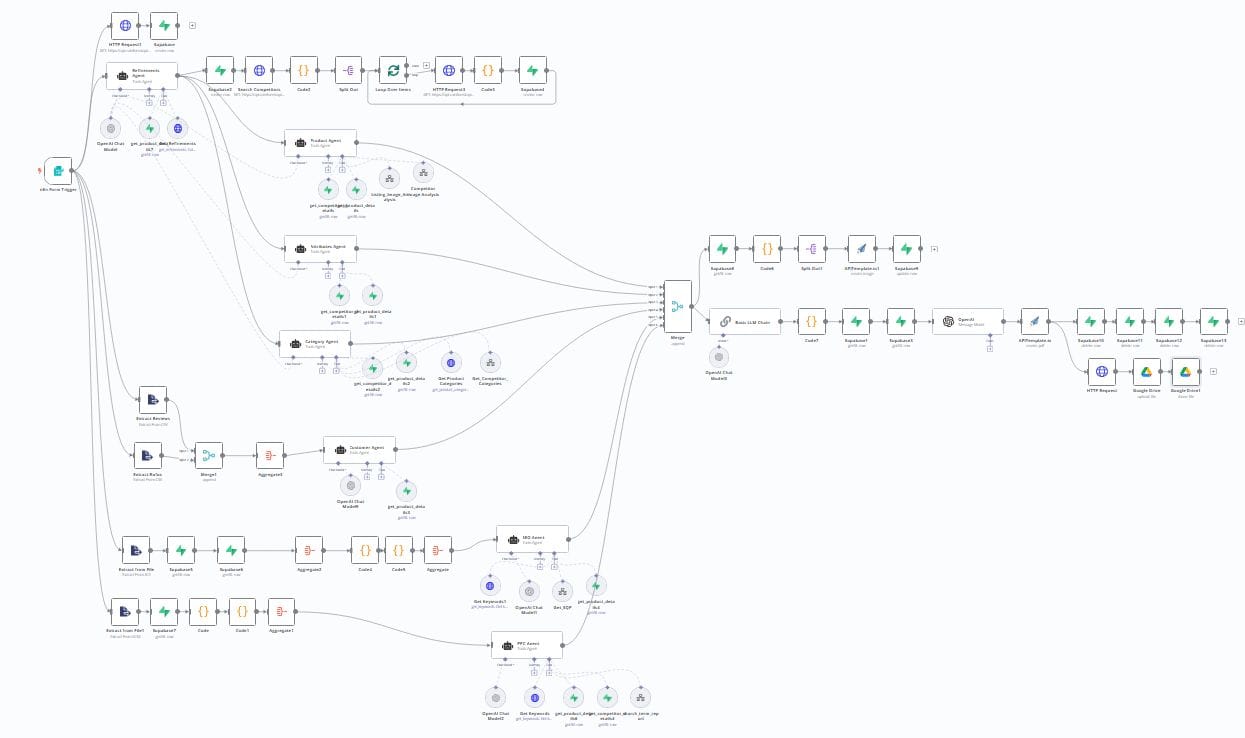 Multi-agent workflow example
Examples:
- Content Pipeline: Agent 1 (research) → Agent 2 (writing) → Agent 3 (review)
- Data Analysis: Agent 1 (data fetching) → Agent 2 (analysis) → Agent 3 (report)
- Customer Service: Router Agent → Specialist Agent (technical/billing/general)
Writing Custom Code
With the Code node, you can run JavaScript or Python for complex logic:
JavaScript Example
// Filter and transform all items
const results = items.map(item => {
  const data = item.json;
  return {
    json: {
      name: data.firstName + ' ' + data.lastName,
      email: data.email.toLowerCase(),
      isActive: data.lastLogin > Date.now() - 30 * 24 * 60 * 60 * 1000,
      label: data.totalOrders > 10 ? 'VIP' : 'Standard'
    }
  };
});

return results;
Python Example
# Data analysis with Python
import json
from datetime import datetime

results = []
for item in items:
    data = item['json']
    # Calculate age in days
    created = datetime.fromisoformat(data['createdAt'])
    age_days = (datetime.now() - created).days

    results.append({
        'json': {
            'id': data['id'],
            'age_days': age_days,
            'status': 'new' if age_days < 30 else 'existing'
        }
    })

return results
Managing Credentials
Credentials (API keys, passwords) are securely stored in n8n:
- Go to Settings → Credentials
- Click "+ Add Credential"
- Choose the type (e.g., OpenAI API, Gmail OAuth, Slack Bot)
- Fill in the required details
- Click "Save"
Security tips:
- Credentials are encrypted in the database
- Use environment variables for sensitive values
- Create separate credentials per environment (test/production)
- Limit API keys to only the required permissions
Organizing Workflows
Tags
Use tags to categorize workflows:
production— Active, tested workflowsdevelopment— Workflows in developmentmarketing— Marketing automationfinance— Financial processes
Folders
Organize workflows in folders by department or project.
Versioning
n8n supports workflow versioning:
- Each save creates a new version
- You can revert to previous versions
- Export workflows as JSON for version control in Git
# Export workflow as JSON backup
curl -X GET https://your-n8n.com/api/v1/workflows/WORKFLOW_ID \
  -H "X-N8N-API-KEY: your-api-key" \
  -o workflow-backup.json
Error Handling
Make your workflows robust with proper error handling:
Error Trigger
Create a separate workflow that starts on errors:
- Use the Error Trigger node
- Send a notification via Slack/email on errors
- Log error details to a spreadsheet
Try/Catch Pattern
- Add an IF node after a risky operation
- Check for successful output
- Route errors to an alternative path
Retry Logic
For API nodes, you can set up automatic retries:
Retry On Fail: Enabled
Max Tries: 3
Wait Between Tries: 1000ms
Useful Tips
- Sticky Notes — Add notes to your canvas to document workflows
- Sub-workflows — Split complex workflows into smaller, reusable parts
- Expressions — Use
{{ $json.field }}to dynamically reference data - Pinned Data — Pin test data for consistent testing
- Keyboard shortcuts:
Ctrl+S— SaveCtrl+Enter— Run testTab— Open node panelCtrl+Shift+E— Open execution log
- Webhook URLs — In production, always use the Production URL, not the test URL
- Rate Limiting — Add
Waitnodes between API calls to respect rate limits
More Information
- n8n Documentation: docs.n8n.io
- Community Forum: community.n8n.io
- Workflow Templates: n8n.io/workflows
- LangChain in n8n: docs.n8n.io/langchain
Need help building a specific workflow? Contact our support team via the chat window at the bottom right or send an email to support@maenda.media.